

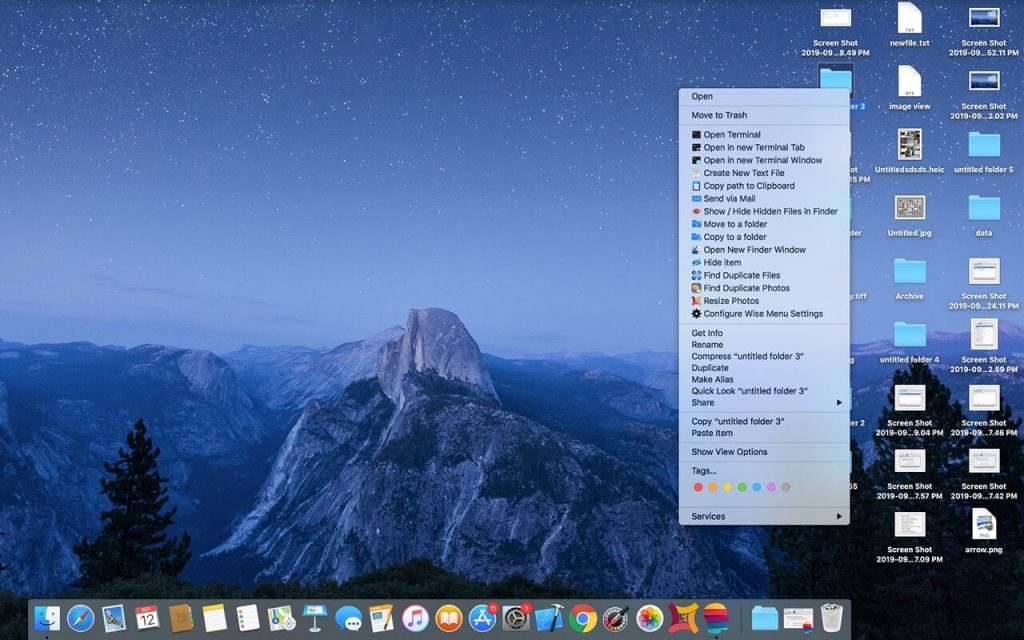
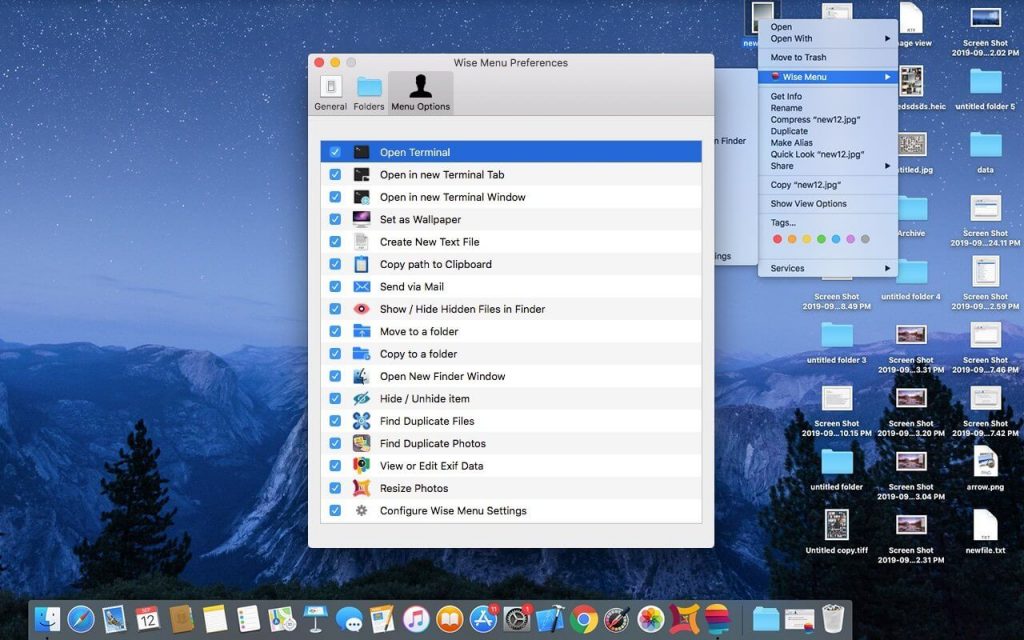
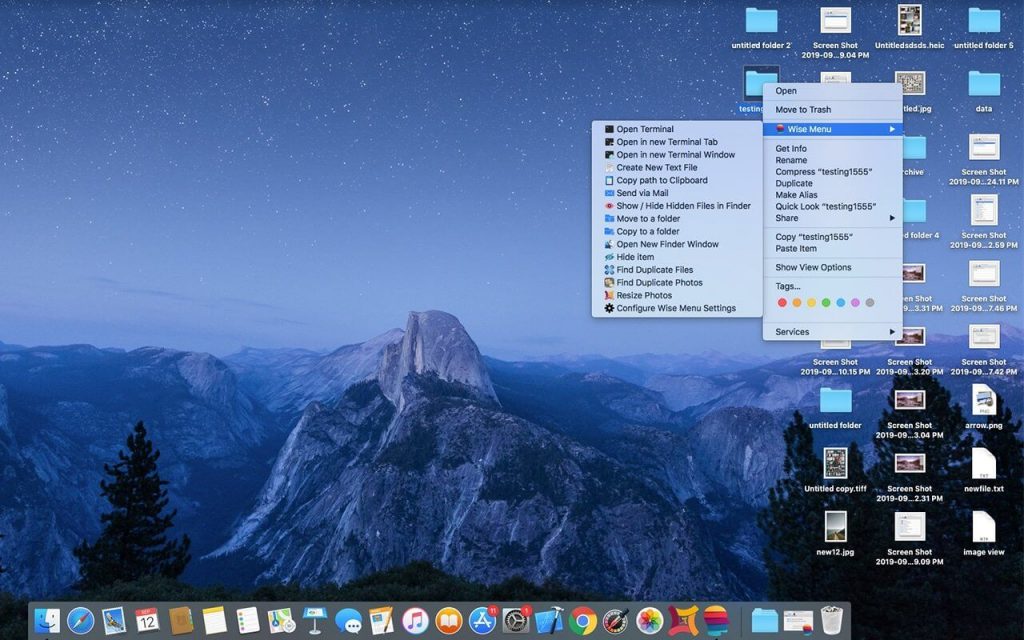
Wise Menu là một tiện ích mở rộng cho Finder giúp thêm các mục hành động mạnh mẽ vào menu khi nhấp chuột phải.
1. Open Terminal
This Menu Item action allows you to open Terminal instantly.
2. Open in new Terminal Tab
This Menu Item action allows you to open a new Terminal tab in an open Terminal window and will change the directory to the location of the selected directory in the Finder.
3. Open in new Terminal Window
This Menu Item action allows you to open a Terminal window at the location of the selected directory in the Finder.
4. Set as Wallpaper
This menu item option is available when you right click on an image and you can set that image as desktop Wallpaper in just a click.
5. Create New Text File
Sometimes we need to quickly create a new document file but Finder lacks to give an easy way to create new text files option in the Context menu. Wise Menu makes this possible with just few clicks using the Right Click Menu item.
6. Copy path to Clipboard
This menu item action copies the entire full file path of the selected file to your clipboard.
7. Send via Mail
Select a file within Finder, right click and then use this menu item action to attach them to an email automatically. Your mail client must be configured to support this functionality.
8. Show / Hide Hidden Files in Finder
The menu item allows you to easily toggle whether to allow Finder to show or hide the hidden files.
9. Move to a folder
Moving files and folders on your Mac is made much easier with Wise Menu, simply right click on any file or folder, click menu option to move that item, authorize in Open panel and instantly choose destination and the selected file/folder will be moved.
10. Copy to a folder
Copying files and folders on your Mac is made much easier with Wise Menu, simply right click on any file or folder that you want to copy to another location, click menu option to copy that item, authorize in Open panel and instantly choose destination and the selected file/folder will be copied.
11. Open New Finder Window
Wise Menu makes it very easy to quickly open a new Finder window at a specific location. Having this menu item in the Context Menu can result in a huge improvement to your Finder workflow as well as will help to save time by getting quick actions.
Tương thích: macOS 10.12 or later
Wise_Menu_2.1